
Category: Annual Salary Updates
The following is a checklist of steps for setting up salaries for next year:
- Use the Salary Schedule Admin section in the Fiscal menu to update salary schedule rates and bases for next year.
- Use the Annual Salary Updates section in the Fiscal menu to update the employee salaries.
- Reset Salaries first for next year
- Reset prorate days (if applicable)
- Update work days (if applicable)
- Increase Steps
- Increase Additional Salary Steps (i.e. longevity, education, etc.)
- Increase nonschedule-based salaries by percentages
- Use the worksheets to make individual changes
If the salary schedules are updated after you started the above process, then you must click on the Refresh Salaries button to refresh the salaries for next year using the revised salary schedules.
- When the salaries for next year are reviewed and confirmed, they are ready to be rolled over to make them show in the current year. Check out the article on the roll over process.
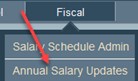 To apply a percentage increase to salaries that are not based on salary schedules, you can enter the hand-calculated amount manually for each job or use a mass update process in the Annual Salary Updates section found in the Fiscal menu. This process will allow you to update Next Year salaries only. This percent increase can be for salaries that are entered as a flat annual amount or a flat hourly amount.
First use the Quick Search or Advanced Search to select the group of people and jobs that you want to update.
 If you have not reset salaries for Next Year in a previous process, you will want to start by clicking on Reset Salaries. This will copy the current salary information to the Next Year salary so you have the most current baseline.
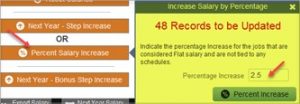 To then increase the salaries based on a percentage increase, click on Percent Salary Increase. The system will tell you how many records will be updated. This is a reminder to make sure you have executed a search first.
Enter the percentage increase and click Percent Increase. You will get another confirmation message before the increase is applied.
If you need to adjust the salary or do further salary adjustments, you can either edit the individual record or, for Next Year, click on Annual Worksheets to review and make the changes.
