Use the Split Year Salary function found in the employee salary section of their job record to capture a salary change that happens sometime after the beginning of the fiscal or contract period. This split only works if there are contract days in the record to begin with since it uses the contract days in the calculations.
Click on the Split Year Salary button and enter the date of the split and the number of days worked to the point of the split. Then enter the new salary-related fields for the rest of the contract days.
For certificated staff who are eligible for a pay increase due to earned education hours, the salary schedule name may be the only data that needs to be entered.
For hourly paid staff who have their hours change, the hours per day may be the only data that needs to be changed.
Salary rounding is the primary reason for salaries to not match what is showing in your payroll system. It is important to know what indexes or rates payroll is using to calculate the salaries in the payroll system. PDF’s of salary schedules or Excel spreadsheets with hidden decimal places are the cause for there being differences in calculation results. Rounding at intermediate steps in a salary calculation can result in pennies to dollars differences in the final salary. So it is important to understand where rounding can be done.
Rounding defaults can be set up in PeopleWerksHR at two levels – at the Classification level and the Salary Schedule level. The rounding can be overridden, however, at the employee job level for the final Salary Total.
Rounding can also be applied in the Salary Schedule Admin section in the Fiscal menu. As salary schedules are updated utilizing percentage increases, the number of resulting decimal places is important to consider so that salary calculations in PeopleWerksHR will match what payroll uses. So, you will be required to enter the rounding level at the time you enter a percentage change.
You can update the salary schedule rates for the current year or next year. It is suggested, however, to do it in Next Year so you can confirm your changes without affecting the Current Year salary schedules.
This process is done in the Salary Schedule Admin section found in the Fiscal menu.
Select Schedules
First use the Quick Search to select the group of salary schedules that you want to update.
For Next Year rates, click on the Reset Next Year Indexes button to copy the Current Year rates to Next Year rates so you are working on the most current rates.
Update Salary Bases
For schedules that are based on an index or a percentage, you need to update the Salary Base Pay by clicking on the Edit icon next to the base pay name. If the base amount is increased by a certain percentage, calculate the percentage, and enter it manually.
If you want to update multiple bases, click on the Manage Multiple Bases button. Select the bases that need updating and then click on the Increase Bases button to increase the rates by a fixed amount or percentage.
Pay special attention to how much precision is needed in the base amounts. Precision is based on the rounding level used. For hourly rates, using a rounding level of 2 signifies rounding to the nearest penny. For full salary amounts, it can be trickier depending on what the Treasurer’s office uses as the base. Many times, the base needs to have extra precision so a rounding level of 5 might be appropriate. A rounding level of 0 means to round the base to the nearest dollar.
You will be able to determine if the precision of the base amount is correct by selecting the Next Year Salary Schedule report found in the Salary Schedules print menu and comparing the Next Year rates to your published salary schedules. If they are randomly off by a small amount, then your base is not correct.
Increase Rates
For schedules with annual or hourly rates, click the Increase Pay Rate button. You will be given an option of updating the Current Year or Next Year. Click Next Year. You will then be given an option to increase the rate by a fixed amount or percentage and then you will enter the amount. For percentage increases, pay attention to the rounding level. If your rates are rounded to the nearest dollar, the rounding level should be 0 otherwise it should be 2 for including the cents.
Review Updated Schedule Rates
When you are finished, you should run the Salary Schedule report found in the Salary Schedules print menu and compare the rates to your published salary schedules. It is important that they are accurate. If you find a problem, you can simply click Reset Next Year Indexes and start again. If there are individual changes needed to some of the rates, just enter them directly in the list of rates.
Updating Employee Salaries
After updating salary bases or rates, the employee salaries do not get updated automatically. Refer to the section on updating employee salaries.
Using a salary schedule already in the system you can update the next year rates by uploading the rates from a spreadsheet. The rates need to be in column format with the steps matching the steps in PeopleWerksHR.
Select the Salary Schedule Admin section in the Fiscal menu. Use the Quick Search or the schedule list to select the schedule you want to update. Click on the Upload Next Year Indexes/Rate button found in the lower right corner of the screen. Copy and paste the rates from Excel to the input box. The system will compare the number of rows/steps you added, to the number of rows/steps in the salary schedule to confirm they match. If they match up, then click on the Update button to proceed uploading these rates for next year. If you have made a mistake, then simply click on the Reset Next Year Indexes button at the bottom of the list of salary schedule steps to copy the current rates to next year.
Select Salary Schedule Admin in the Fiscal menu. There are three steps to setting up a new salary schedule.
Step 1 – Add Schedule Name
Click on the Add Schedule Category button at the top of the list of Salary Schedules. Enter the following information:
Schedule Name (required)
Classification (required) – select from the dropdown list. The classification of salary schedule must be the same as the classification of related positions.
Union (optional) – select from the dropdown list.
Rate Type (required) – select from the dropdown list. The rate types are as follows:
Full Salary – a rate that is an annual amount
Index Rate – a rate this is an index that is multiplied by an annual salary base amount
Hourly Rate – an hourly amount
Hourly Base – a rate that is an index that is multiplied by an hourly base amount
Daily Rate – a daily rate amount
Daily Base – a rate that is entered as an index that is multiplied by a daily base amount.
Percentage – a rate that is entered as a percentage that is multiplied by a base amount of any type.
Base Pay Assoc. (required for Rate Types of Index Rate, Hourly Base, Daily Base and Percentage) – Select from the dropdown list.
Salary Rounding Override (optional) – Enter a rounding level if different than the default. Rounding refers to number of decimal places in a salary and is typically set to 0 (round to the nearest dollar) or 2 (round to the nearest penny). See the note at the bottom of the window to see what the default is.
Bonus Schedule (optional) – Click the checkbox if the salary schedule is being used for calculating the additional salary amounts in the job salary record. Bonus schedules are typically used for longevity or education/training.
Schedule Notes (optional) – Enter any description or notes needed.
Step 2 – Add Schedule Steps
Select the new schedule name that was added in the step above. Click on the Add Step/Index button at the top of the list of salary schedule steps. Enter the following:
Step (Required) – Enter the step number. Some schedules may show a rate change between step 10 and 15, for example. If this is the case, you still need to enter the steps 11 through 14 so that when you run a step increase process for employee salaries, a salary rate will be known.
Step Mask (Optional, will default to Step number) – A step mask is an alternative step number that might be needed as a merge field for contracts or salary notices. In the example described under the Step section above, the step mask could be entered as 10 for steps 11 through 14.
Current Rate – Enter the rate for the current year.
Next Year Rate – Enter the next year rate if it is different than the current year rate that was automatically entered.
Repeat the process to add all the steps of the schedule.
Step 3 – Add Salary Base
If the salary is indexed, then a base amount must be added if it is not already set up. Click on the Add Salary Base button at the top of the list of salary bases. Enter a name for the base and then enter the base amounts for the current year and the next year.
After updating one or more rates in a salary schedule, you must run a process to update the salaries for those people affected. To do so, use the Annual Salary Updates section in the Fiscal menu. Use the Quick Search or Advanced Search to find the select people and then click on the Simple Current Salary Update.
(TIP: If you have only changed one salary schedule, use the Advanced Search and select just that salary schedule in the Job/Contracts area to find the people affected by the change.)


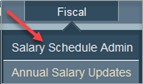 This process is done in the Salary Schedule Admin section found in the Fiscal menu.