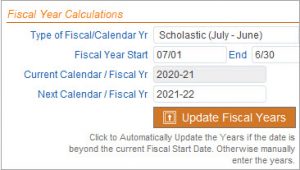
Reset Fiscal Year

There are two data fields of Current Year and Next Year.  These fields are used in reports and are merge fields usable in custom reports and letters.  The values for these two fields are managed in the Operational Settings found in the General Settings & Defaults section in the Admin/Config menu.

Click on the Update Fiscal Years button to automatically update the dates if the current date is after the Fiscal Year Start Date.  If the current date is before the Fiscal Year Start Date, you can manually enter the dates in the Current and Next year fields.

These dates should be updated after you have finished all the year end processes.

Training Video – Create Service Records

Training Video – Increase Years’ Service

Create Service Records

A service record is a snapshot of the job(s) the person has been assigned for the year and over time creates a yearly history of their jobs.  It is important to create the service records because they are used for answering questions in the future about prior year staffing.

The service records are  “captured” by the system using the process found in the Annual Updates section of the Personnel menu.   This process should be run only once per year.

If you do not want to capture everyone’s jobs, you can use the Quick Search or Advanced Search to narrow your list.  It is recommended, though, to just capture all active people and all jobs since you may not know what questions might be asked years down the road.

Once you have your list confirmed, then just click Service Record Creation.  It will tell you how many service records will be created and if you want to proceed, then click on Create Service Record.

When it is complete, the system records a log entry to show that the process was done on that date by whoever ran it and the criteria that was used.

There are special Service Record reports in the Reporting menu that can be run to answer questions about staffing in past years.


Increase Years’ Service

To increase the employee’s organization/district years’ service, use the process found in the Annual Updates section of the Personnel menu.   This process should be run only once per year.

The first step is to use the Quick Search or Advanced Search to select your people for whom you want to do the increase.

Once you have your people, then click on the Increase Years in Org button.


The system will tell you how many people you have selected and will allow you to review the list before you run the process.

It is recommended that you click on Review List and save the report to Excel or pdf just so you have a record of what the years were before you have the system do the increase.

When you click on Increase Years, you will be given the chance to enter minimum work days if it applies and then click Continue to process.

Increase Years’ Service in Jobs

You can repeat the above process for increasing years’ service in jobs.