
In the full personnel list that is displayed when you select Employees, Substitutes or Volunteers from the Personnel menu, click on the Print Personnel Summary Reports button for options. These reports contain the information shown in the personnel list.
Tag: Report
In the Salary Schedule Admin section of the Fiscal menu, there are two types of salary schedule reports.
Click on the Print Salary Schedules button to review the rates in salary schedules. There are multiple options for viewing current year, next year, or comparison or current and next year.
Click on the Print Salary Reports button for salary schedule reports that show details or summaries of personnel on the individual schedules.
There are special reports that provide an overview of an individual person’s information.
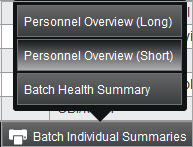
In the Employees, Substitutes and Volunteers sections in the Personnel menu, you can generate individual personnel reports for a group of people. Use the Advanced Search or Quick Search to select the group of people and click on the Batch Individual Summaries button to see the options.
In the Personnel Details section, select an individual and click on the Report Options button to see the options.
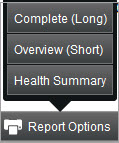
This Report Options button is also available in the Employee Editor.
The General reports are formatted reports that contain pre-selected data fields . There are three steps for generating a report.
- Select the report format. Either click on the report title or hover over the title with your mouse to get a brief description along with the list of fields. Because there are so many reports in the system, they have been grouped into Report Areas so that it makes it easier to find the report you want. Selecting a Report Area from the drop-down list will narrow your search for the report that you need. If you are not sure what Report Area, then clear the Report Area field by clicking on the “x”. You can then scroll down through the Report Format List to find the report you want. Click on the desired report title.
- Select Search Criteria. Click on the Add-Edit Criteria button to select the criteria to find the data/records that you want in the report. Remember that the more criteria you select, generally the fewer the records found. After executing the search, the system will display a count of the total records. If this count does not seem right to you, you may want to re-enter your search criteria.
- Click the View Report button to see the results. By clicking on a data heading once or twice, the data will be sorted in either ascending or descending order. Note that for some reports, there are additional sort options available in the upper right corner of the screen. You can print the report to paper or to a pdf or export the data to a CSV/Excel file. Then close the report.
If the report is one that you would want to run often, click on the Save Current Report button. Enter a title and description for the saved report. If you want others to be able to run the same report, you can share it with them by selecting their name from the list.
If you need to save the report with the exact data that you see, you should print it to paper or PDF or export it to Excel. This is because every time a saved report is run, it always is pulling the latest data from the system.