In the Salary Schedule Admin section of the Fiscal menu, you will be able to discern if your salary bases and rates have been updated for next year and are in need of being rolled over to the current year if they appear in red.
For schedules that are indexed-base, you will need to roll over your salary bases. To roll one or more, click on the Manage Multiple Bases button, select the bases that you want to roll and then click on the Roll Bases button. This copies the Next Year bases into the Current Year bases section. The other option, if you only have one base to roll, is to edit the base and manually enter the base into the Current Year.
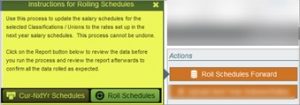
For schedules that are based on hourly, daily or yearly rates, you will need to click on the Roll Schedules Forward button which copies the rates that you set up in Next Year into the Current Year rates section. To do so, first use the Quick Search to select the group of salary schedules that you want to update. After confirming that you have the correct schedules to roll, click Roll Schedules Forward. If you want to review the schedules one more time, you can select the print Cur-Nx Yr Schedules option. If you are ready to do the update, click Roll Schedules. Once the update is done, the rates will match between Current and Next Year and will no longer be red.
You can update the salary schedule rates for the current year or next year. It is suggested, however, to do it in Next Year so you can confirm your changes without affecting the Current Year salary schedules.
This process is done in the Salary Schedule Admin section found in the Fiscal menu.
Select Schedules
First use the Quick Search to select the group of salary schedules that you want to update.
For Next Year rates, click on the Reset Next Year Indexes button to copy the Current Year rates to Next Year rates so you are working on the most current rates.
Update Salary Bases
For schedules that are based on an index or a percentage, you need to update the Salary Base Pay by clicking on the Edit icon next to the base pay name. If the base amount is increased by a certain percentage, calculate the percentage, and enter it manually.
If you want to update multiple bases, click on the Manage Multiple Bases button. Select the bases that need updating and then click on the Increase Bases button to increase the rates by a fixed amount or percentage.
Pay special attention to how much precision is needed in the base amounts. Precision is based on the rounding level used. For hourly rates, using a rounding level of 2 signifies rounding to the nearest penny. For full salary amounts, it can be trickier depending on what the Treasurer’s office uses as the base. Many times, the base needs to have extra precision so a rounding level of 5 might be appropriate. A rounding level of 0 means to round the base to the nearest dollar.
You will be able to determine if the precision of the base amount is correct by selecting the Next Year Salary Schedule report found in the Salary Schedules print menu and comparing the Next Year rates to your published salary schedules. If they are randomly off by a small amount, then your base is not correct.
Increase Rates
For schedules with annual or hourly rates, click the Increase Pay Rate button. You will be given an option of updating the Current Year or Next Year. Click Next Year. You will then be given an option to increase the rate by a fixed amount or percentage and then you will enter the amount. For percentage increases, pay attention to the rounding level. If your rates are rounded to the nearest dollar, the rounding level should be 0 otherwise it should be 2 for including the cents.
Review Updated Schedule Rates
When you are finished, you should run the Salary Schedule report found in the Salary Schedules print menu and compare the rates to your published salary schedules. It is important that they are accurate. If you find a problem, you can simply click Reset Next Year Indexes and start again. If there are individual changes needed to some of the rates, just enter them directly in the list of rates.
Updating Employee Salaries
After updating salary bases or rates, the employee salaries do not get updated automatically. Refer to the section on updating employee salaries.

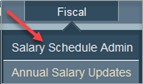 This process is done in the Salary Schedule Admin section found in the Fiscal menu.