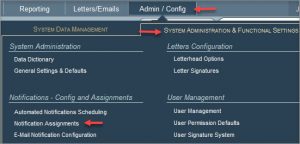
Use the System Data Management section in the Admin/Config menu to manage your master lists that are used in dropdown lists for data entry. Performance evaluations related lists are:
Evaluation Templates
Evaluation Ratings
Click the button for adding a new option to the list or click on the edit icon for modifying the details of one of the existing options. Before deleting an option, you will want to run a report to see if the option is being used in any of the employee records.
Use the System Data Management section in the Admin/Config menu to manage your master lists that are used in dropdown lists for data entry. Employee Leave management related lists are:
Leave Statuses – these are pre-configured
Leave Type/Reasons
Leave Calendars – two calendars are used for counting leave days. The Holiday calendar is sent up one time for the year and is applicable to all employees. The Work calendars are set up for different groups of employees based on their work days.
Calendar Day Types – used in setting up the calendar
Leave Rules – advanced feature used when tracking leave balances
Leave Rules Groups – advanced feature used when tracking leave balances
Click the button for adding a new option to the list or click on the edit icon for modifying the details of one of the existing options. Before deleting an option, you will want to run a report to see if the option is being used in any of the employee records.
Use the System Data Management section in the Admin/Config menu to manage your master lists that are used in dropdown lists for data entry. Benefit-related lists are:
Benefit Plans – Specific plans for benefit categories of medical, dental, vision, insurance, etc.. Data includes rates for employee and employer payments, frequency of payments, etc.
Coverage Types – Types such as Family, Employee+1, Single, etc.
Coverage Tiers – Tiers such as dollar amounts for insurance.
Benefit Status – Statuses for plans as well as employee statuses such as active, ineligible, denied, waived, etc.
Click the button for adding a new option to the list or click on the edit icon for modifying the details of one of the existing options. Before deleting an option, you will want to run a report to see if the option is being used in any of the employee records.
Use the System Data Management section in the Admin/Config menu to manage your master lists that are used in dropdown lists for data entry. Education related lists are:
Education Levels
Education Options
Education Licenses
Education License Endorsements
Click the button for adding a new option to the list or click on the edit icon for modifying the details of one of the existing options. Before deleting an option, you will want to run a report to see if the option is being used in any of the employee records.
Use the System Data Management section in the Admin/Config menu to manage your master lists that are used in dropdown lists for data entry. Organization related lists are:
Organization
Employers
Buildings
Building Rooms
Work Times
Master Work Schedules
Click the button for adding a new option to the list or click on the edit icon for modifying the details of one of the existing options. Before deleting an option, you will want to run a report to see if the option is being used in any of the employee records.
An integration is available with PublicSchoolWORKS to keep staff rosters in sync. An export file from PeopleWerksHR can be transmitted to PublicSchoolWORKS for employees who the district wishes to allow access. This integration requires district intervention to contact PublicSchoolWORKS for the proper credentials for sending the data. Contact PeopleWerksHR Support to configure the integration.
If you use Frontline Hiring for your employment applications, PeopleWerksHR can import basic information from that system when you are adding new employees into PeopleWerksHR.
To implement this integration, send an e-mail to support@frontlinetechnologies.com requesting the Partner Access Key and District ID in order to integrate with PeopleWerksHR. They need to see this “official” request coming from you, as their client. Forward the information to PeopleWerksHR Support and they will configure the integration for you.
Manually updating employee’s license information for Ohio is not necessary with the implementation of the system integration to the ODE License database. Updates from the ODE License database are available on a weekly basis and can be set to run automatically. In addition, if you need license information immediately for a new hire, you can click on Add Ed Credential and the system will look up their licenses and add them for you, provided that you entered their State ID first (in the Employee Name and Demographics section) and you have added them to the list for the system integration.
Please note that the ODE database is provided once per week to PeopleWerks (Sundays). Systems are automatically updated on Monday nights. If you have been given a license that was only issued on a Monday, for example, and you are looking for it on Friday, you will not see it in PeopleWerksHR until the following Tuesday due to the timing of the updates.
A very useful communication feature of PeopleWerksHR is its electronic notification system. When a user changes or adds certain data in the system, notifications are automatically generated to people who need to know about them. These people do not need to be users of PeopleWerksHR, the notifications can be sent to them as emails.
There are over thirty different notifications covering additions or changes in the following types of information:
Name
Contact Information (address, email address, phone #, etc.)
Emergency Contact
Employment Status
Job Assignment
Job Salary
Job Contract
Demographics
Education Hours
Background Check Dates
Leave Requests
To manage who gets what notifications, click on the System Integration Assignments section found under Notifications in the Admin/Config area.
Click on the Subscribe Employeebutton at the bottom right of the screen and select the employee from the list. In the Manage System Notifications screen, you will see the available notifications in the lower half and you can just click on the Add icon to “subscribe” to the notification.
If someone only wants notifications applicable for certain groups of people, click on the Edit icon next to the Current Notification and select the buildings or classifications that apply.
If you want to send notifications to a person who is not in PeopleWerksHR, you can click on the Subscribe External button and enter their name, email address and then select the notification type.
You can manage your own notifications from the My Preferences section found by clicking on your name at the top right of the screen.
In addition to notifications being sent out by email, they show on the Home Page as well in the System Notifications section. This can be used by PeopleWerksHR users like an action item list. Employee notifications can be viewed, printed, exported or deleted.
You can customize many of the field labels to match the language that you use in your own process. You will also want to change the generic user-defined field labels to be more descriptive. To make these changes, use the the Data Dictionary found in the Admin/Config menu.
Note that there are many tabs to look through to find the fields that you want.
Enter the new field label in the Override box. Tooltips can also be added which allow for a longer description of the field contents to be shown when you “mouse over” the field.