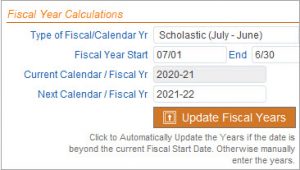
Reset Fiscal Year

There are two data fields of Current Year and Next Year.  These fields are used in reports and are merge fields usable in custom reports and letters.  The values for these two fields are managed in the Operational Settings found in the General Settings & Defaults section in the Admin/Config menu.

Click on the Update Fiscal Years button to automatically update the dates if the current date is after the Fiscal Year Start Date.  If the current date is before the Fiscal Year Start Date, you can manually enter the dates in the Current and Next year fields.

These dates should be updated after you have finished all the year end processes.

Work Calendar Assignment

You must assign a Work Calendar to individual employees or groups of employees for proper counting of leave dates.  Work Calendars are set up in the System Data Management section of the Admin/Config menu.  Click here for more more information on the set up process.

You can assign a Work Calendar to an individual in the Work Calendar and Leave section of their personnel record.

You can also assign a Work Calendar to a group of people, such as your certificated staff by using the Leave Summary section of the Personnel menu.

  1. Select your group of people by using the Quick or Advanced Search.
  2. Click on the Set Work Calendar button.
  3. Choose whether you want to assign the Work Calendar to everyone you have selected or only the people in your list who do not have a calendar assigned.
  4. Select the calendar from the Calendar list.  You will see the Work Calendar updated in the employee list.
  5. If you need to change an individual’s Work Calendar, click on the Edit icon.

Calendars for Leave Tracking

Calendars are used for calculating the number of days off between a leave start date and return date.  There are two types of calendars:

  • One holiday calendar that is used for everyone
  • One or more work calendars that are used for various groups of employees.

Creating Calendars

Calendars are managed in the System Data Management section of the Fiscal menu by clicking on Leave Calendar Setup.  To add a new calendar, click on the Add Calendar button or click on the Duplicate icon if you want to duplicate one and modify it as a new calendar.  Enter the following information:

  • Name
  • Type – Holiday or Work
  • Fiscal Year
  • Description
  • Start and End Dates
  • Days Assigned
  • Units Used – days or hours

In the Events List,  enter the dates that are not counted when calculating days off for a leave.  For the Holiday calendar, these dates would be the holidays that everyone has off.  For the Work calendar, these would be the other days off that a particular group of employees get.  Both calendars are used in combination for the calculations of days off, so it is not necessary to add the holidays to the work calendars.

In the Events list, make sure that there is a description and day type entered.  Once you select the first date and enter the description and day type, it will default to those selections for the remaining dates that you enter but you can override that.  Generally, the Day Type is just Day Off.


Is there a recommended timing of when to do certain processes in PeopleWerksHR?

PeopleWerksHR does not define your process but rather helps you with your HR processes throughout the year.  Here is a list of reminders based on general calendar timing:

  • July – Set your system to the new school year in System Settings under Operational Settings.  Re-select from the drop-down list the Scholastic (July –June) option.  It will update the Current and Next Year dates.
  • July – For people who have left, you should do two steps.  First, change their status to one of the inactive ones such as Retired, Resigned, etc.  Second, Archive the person’s record.
  • August – For your “New Hires”, change their status to an active status.
  • October – Run the Service Record Creation process in the Annual Updates section to take a snapshot of your staffing picture for reporting in the future.  This process can be done at any time when you feel your staff is the most stable.  Many run this in March before the hiring season.
  • February – Start planning for the next school year for contracts, salary schedules, salary updates.
  • March – Update contract templates as necessary in Letters.
  • April – Run the process in the Annual Updates section of giving credit for the years’ experience – years in job and years in organization.
  • April – Enter new employee contract information for the next school year using the worksheet “Contract Mgmt-Current_Future”.
  • April – As people communicate that they are not returning for the next year, change their status immediately to “Active – leaving”.  This will notify others of the change and will allow you to filter  these people out when working on staff updates for the next year regarding contracts and salaries.
  • April – Update salary schedules for next year in the Next Year schedule section.
  • May – Enter next year salary details for staff.
  • May – Generate employee contracts.
  • June – Run any final reports for the current school year.
  • July – Run the year end processes for rolling forward contracts and salaries that have been set up in “Next Year.