At any time, if you update one or more current year salary schedules and simply want to update the employee salaries that are affected by the schedule changes, go to the Annual Salary Update section of the Fiscal menu.
First use the Quick Search or Advanced Search to find the active employees and their jobs that you want updated. If you use the Quick Search, you can select just the salary schedules that you recently updated so that you can limit your update to only those jobs affected by those schedule changes.
Once you confirm your selected list of jobs is correct, then click Simple Current Salary Update and continue by clicking Simple Update.
After the process is complete, there will be an update entry in the affected employee salary history as well as an entry in the Salary Changes History log which will indicate who ran the update, on what date and time, the number of records updated and the selected criteria.
If there is a year when no salary changes are granted, you can run a process to record/capture that the salaries were frozen for that year. The process will generate an entry in the employee’s salary history as well as record an entry in the Salary Change History log for future reference.
This process is found in the Annual Salary Update section of the Fiscal menu.
First use the Quick Search or Advanced Search to find the active employees and their jobs that you want to capture.
Once you confirm your selected list of jobs is correct, then click Capture Salary Freeze and continue by clicking Freeze Salaries.
If you have set up employee salary data in Next Year, then you need to roll over the data to make it for the Current Year.
Before rolling over employee salaries that have been set up in Next Year, make sure to roll over the salary schedules and salary bases first in the Salary Schedule Admin section of the Fiscal menu.
In the Annual Salary Updates section of the Fiscal menu, use the Quick Search or Advanced Search to find the active employees and their jobs that you want updated from Next Year to Current Year. You may want to do the rollovers by individual job classifications but you do not have to.
Rates that show in red in the Next Year Salary column indicate that they are different than the Current Year and may need to be rolled over. If you want to review the data prior to the rollover then select the print Salary Detail Report. If you find something that needs to be changed, click on Annual Worksheets and select the Current_Next Year Salary Details worksheet.
When you are ready, click Roll Salaries Forward. You will then confirm that you want to roll by clicking on Roll Salaries.
Once it is complete, you will see in the listing that the data matches between current and next year and there are no rates in red. If you see any discrepancies, you can further edit an employee’s job by clicking on the edit job icon.
Although you can do the salary step increases manually for each job, there is a mass update process that is much easier and faster which is in the Annual Salary Updates section found in the Fiscal menu. This process will allow you to update either the Current Year or Next Year steps.
First, use the Quick Search or Advanced Search to select the group of people and jobs that you want to update.
Consider the Employment Status as part of the search so that you do not give a step increase to people who may be leaving before next year or give a step increase to a new hire. If you have used the statuses of Active-Leaving and/or New Hire, you will be able to leave that group out. The list of jobs will show the current and next year salary data side by side for easy review.
If you are updating Next Year salary steps, you will want to start by clicking Reset Salaries. This will copy the current salary information to the next year salary information so you have the most current baseline. You might notice that the salaries change based on this process if your salary schedules are different for next year.
To increase steps, click either Next Year – Step Increase if setting up your salaries first in Next Year to roll over later or Current Salary -Step Increase if you are not setting up your salaries in Next Year. The system will tell you how many records will be updated. This is a reminder to make sure you have executed a search first.
For increasing steps for Next Year, you can enter minimum work days so that salary steps are only incremented by one if the Current Year contract work days and the pro-rate days are greater than the minimum days you enter. If you do not want to use minimum work days, then just leave it blank and all salary steps will be increased by one.
When ready, click Increase Steps. The system will give you one more confirmation question before updating the steps. You will see in the listing that the steps are increased and the salaries updated based on the step increases.
If you need to adjust the step or do further salary adjustments, you can either edit the individual record or, for Next Year, click on Annual Worksheets to review and make the changes.

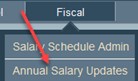 At any time, if you update one or more current year salary schedules and simply want to update the employee salaries that are affected by the schedule changes, go to the Annual Salary Update section of the Fiscal menu.
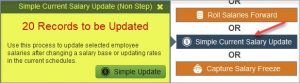 After the process is complete, there will be an update entry in the affected employee salary history as well as an entry in the Salary Changes History log which will indicate who ran the update, on what date and time, the number of records updated and the selected criteria.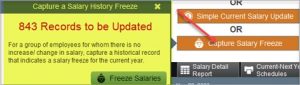
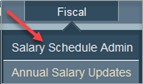 Before rolling over employee salaries that have been set up in Next Year, make sure to roll over the salary schedules and salary bases first in the Salary Schedule Admin section of the Fiscal menu.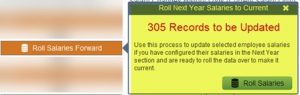

 If you are updating Next Year salary steps, you will want to start by clicking

 If you need to adjust the step or do further salary adjustments, you can either edit the individual record or, for Next Year, click on